Wednesday, 21 December 2011

Some General Difference Between Microsoft Office SharePoint and SharePoint Server 2010

MOSS 2007 Vs SPS 2010

I have noted down some difference between MOSS 2007 Vs SPS 2010. I have also refered some points form MSDN and other MVP's blogs. Hope you will like these.


Microsoft Office SharePoint
Server 2007
SharePoint Server 2010
Office client required to view and edit documents uploaded to document libraries (Download and open)
Office Web Application enables Word, PowerPoint, Excel and Visio documents, using Silverlight or HTML with JavaScript (Depending on Browser Support)
No Co-Authoring Capability
Co-Authoring Capabilities available for Word, PowerPoint (with client software) and Excel (Available over the web)
Lot of post backs
Fewer post backs for default actions – more Ajax usage
No inherent support of Ajax or Silverlight
Fully supported
Static themes. You just pick a theme and its applied across the site, no preview
You can select a theme , customize it and preview before applying it on the site
No bookmarking, tagging or rating capability
Its all there
Content Types scoped to site collections
New concept of having a Content Type hub which can be shared across web applications
Media files would have to be downloaded before playing
Progress download feature available (not streaming)
BDC used to store info in SharePoint
BCS reads data real-time (with some caching for performance)
5 million item limit in document library
10 million
Views are CAML driven
Views XSLT based
To query a list we had to use CAML
Queries via LINQ, JavaScript and Silverlight API’s
No restriction for installation
Ability to prevent people from installing SharePoint (Managed at the AD level)
Shared Services scoped to Farm
Shared Services architecture changed to make it more flexible and ability to share across farm
Profile synch could be done by anyone
Additional permission check for account to carry out profile synch
Basic web Analytics
Web analytics capability enhanced
Search results are static
Clicking on a search result affects the search results for the other searches for the same keyword
To limit issues with rogue code that could bring down the server, CAS had to be defined /maintained for different applications. This was not easy to do and Admins used to say – no code allowed
Sandbox available that restricts the scope of code. Deployment is also easy, the code just needs to be uploaded by the site admin, no need for intervention from the SharePoint farm admin to run scripts on the server
People with contribute access could upload .aspx pages in a document library. It was possible to restrict, however it would restrict everyone from uploading .aspx pages
People with contribute access cannot load .aspx pages
Contributors could edit tool pane parameters
Not editable by contributors
Explorer view on browser
Opens up Windows explorer with web dav access
Simplistic Mobile Page OOTB
Able to create richer mobile pages using OOTB features
Usage of outlook for offline access
SharePoint Workspace used for offline access – more capability eg. ability to synch up lists (even external content from BCS)
Not possible to have a common document ID that is associated with a document regardless of which document library it moves into
Document ID can be defined and associated to the document regardless of where it is located(within the site collection)
To upload a document or page, one needs to go to that appropriate site/subsite and library and upload
Content organizer moves document to appropriate libraries based on metadata rules which can be defined
When a file with a same name is uploaded, it creates a new version
Option to have another version or append a unique ID to the document being uploaded
Fixed layout with defined web part zones where web parts can be placed
More “Fluid” UI; ability to place web parts without having web part zones
Retention policy allows only delete or invoke workflow by default
Multiple other options – eg send to another library etc
EBS – to store docs out side SharePoint, possible but not easy to configure
RBS -  managed by SQL
Requires Server OS to install(32 or 64)
Can be installed on Win 7 (64 bit) and Win 2008 (64 bit)
No field validations
Field validations available
Workflows created in SPD or VS.Net – not possible to move a workflow developed in SPD to VS.Net
Workflows can be defined in Visio, Imported to SPD with rules added and then moved to VS.Net
Table based layouts
Div Based layouts (better for accessability)


SP 2010
MOSS 2007
Look and feel
In SP 2010 look and feel perspective there will be a ribbon where we can have a look and feel like Office 2010
In MOSS 2007 there is no ribbon
Deployment of Web parts
In SharePoint 2010 deploying custom web part is pretty simple i.e. just right click on the solution and click Deploy
In MOSS 2007 you need to drag the dll either to bin or GAC
Silverlight Application
In SP 2010 we can create a Silverlight application directly from Visual Studio 2010
In MOSS 2007 we have to create a web part to host Silverlight application
Shared Database & Service Application
In SP 2010 there is no SSP but there is a concept of Service Application like BCS as one service application, Excel Services as another service application, User Profile as separate service application
General idea is that you have an application for each service, rather than one application with lots of service crammed into it
Own database rather than shared database in SP 2010
In MOSS 2007 we have SSP where we can work around with BI,Search Settings, User Profile Import, Excel Services, Info path
In Database also we use to have separate area for SSP stuff
Easy exports/imports between the forms
In SP 2010 we can update existing information
In MOSS 2007 through we can just read the information and we can't update the existing services
Improvement in Deployment
In SP 2010 we can Deploy through Farm based and solution based solution in SP 2010
In MOSS 2007 there is no such option
Alerts
In SP 2010 it has been improved in validation and unique values. While creating column itself we have an option "Allow Duplicate values" to Yes or No
In MOSS 2007 alerts were sent only through emails but in SP 2010 users can also send alerts to mobile device as SMS message. A New property delivery channel is introduced to indicate, whether the alerts is delivered as Email or an SMS message
Improvements of events
New events for list creation and web creation
No List and web events in MOSS 207
Getting Items from the list
In SP 2010 through object model we can fetch multiple list data by LINQ query and object model
In MOSS 2007 we can fetch only through object model
Rating
In SP 2010 we can have rating column by default
In MOSS 2007 we should install the feature that is available in codeplex to have rating
Key Word Suggestions
In SP 2010 we can have keyword suggestions
In MOSS 2007 we don’t have any keyword suggestions
Taxonomy
In SP 2010 we can create Taxonomy by using Managed Metadata service
In MOSS 2007 we don’t have taxonomy
Other Features
In SP 2010 we have Power Shell Scripting, JavaScript object model, Chart Web Parts
In MOSS 2007 we don’t have Power Shell Scripting, JavaScript object model, Chart Web Parts
Running stsadm command
In SP 2010 we have to go 14 hive path to run stsadm command
In MOSS 2007 we have to go 12 hive path to run stsadm command

SharePoint 2010 Search Set-up

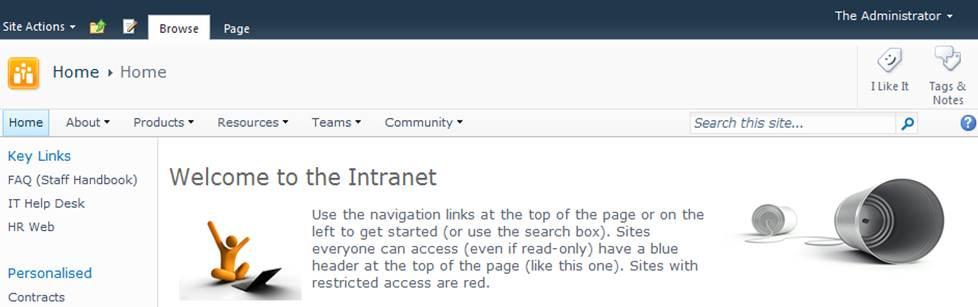
In SharePoint 2007, if you created a new site collection using the ‘Collaboration Portal’ template, it would come with a number of sites, including the Search Center. In SharePoint 2010, this is no longer the case. There isn’t a Collaboration Portal template for starters, the nearest you’ll find is the Enterprise Wiki template which is my recommended starting point for Intranets, KM and Collaborative Sites. (Side note: Another example of poor usability on Microsoft’s part. The Enterprise Wiki template is available in both the Standard and Enterprise editions of SharePoint 2010. When you read about features with ‘Enterprise’ in the title, don’t assume they are limited to the Enterprise Edition, in most cases they are also available in Standard.)
In SharePoint 2010, the clue is in the search box:
   

When you create a new site collection, the default search settings limit search to within the current site only and uses built-in search pages. If you want to search across multiple sites (a fairly normal requirement for most internal SharePoint deployments), use search scopes and configure different types of results pages, you will be wanting a dedicated search site. Here’s what to do:
Create a Search site
  1. At the root of the site collection where you want the Search site to live, click Site Actions and select ‘New Site’
  2. Select the search site template you want to use
  3. Enter a title and URL (Search works for me…) and create the site
There are up to three search site templates to choose from (and you should use a search template if you don’t want to create a lot of extra work for yourself setting up search query and results pages):
  • Basic Search – available with all versions of SharePoint
  • Enterprise Search – requires SharePoint 2010 Server: Standard or Enterprise edition (yes, another of those ‘Enterprise’ features also available in Standard)
  • FAST Search – requires SharePoint 2010 Server Enterprise Edition (or FAST add-on/dedicated)
The search query box is automatically integrated every SharePoint site within the global navigation bar (as shown in the first image above). Unless you particularly want to also have the Search site listed in navigation, go into the Navigation settings and hide it.
Configure Search Settings
Once you’ve got your search site, you can now configure the search settings to use it. This step needs to be repeated for each site collection that you want to point to the Search site.
  1. At the root of the site collection, go to Site Actions – Site Settings.
  2. Under Site Collection Administration, click on Search Settings
  3. Within Search Settings:
    • For the Site Collection Search Center, enter the URL to your search site in the format /search/Pages (replace the word ‘search’ with the site URL for your search site, if different))
    • In Site Collection Search Scopes dropdown mode, select ‘Show search scopes’
      The image below shows the settings for my demo machine:

  4. Click OK and you’re done.
Once the search settings are configured, the search box will show scopes with the default set to search across all sites instead of just the current site:

Don’t forget, you’ll need to configure search settings for each site collection that you want to point to the Search site. Whilst the URL will be relative for the site collection where the search site is located, for all other site collections you will need to enter the full path (for example, on my demo the URL is http://sp2010/search/ for all other site collections)
Enter a search query in the new search box and you will be routed to the Search site to display results:

In the image above, I’ve configured the default results page in the Search site to also include federated search results. When I enter the query ‘SharePoint’ I can see documents and items on the Intranet (along with refiners on the left to filter results), people who have SharePoint in their profile and federated results YouTube.
I’ve also modified my Search site to include 2 additional tabs – Staff Directory and Internet. The Staff Directory is discussed in a follow-up post (see links at the end of this page). The Internet tab shows more federated search results from sites such as Twitter, MSDN, TechNet and Google News. I’ve even got a page for querying Facebook but haven’t managed to federate that one yet. Federated results are great for finding relevant information inside and outside your organisation using a single query.

Tuesday, 22 November 2011

Using the SharePoint date control in a web part

Here is a code sample of a web part that uses the sharepoint date control
The code is simple - three controls - a DateTimeControl from the Microsoft.SharePoint.WebControls namespace, a button and a text box.The button has a click event. On click, the event sets the text box to display the date that was selected in the DateTimeControl.


public class DatePickerWebPart : System.Web.UI.WebControls.WebParts.WebPart
{
DateTimeControl dtc;
TextBox t;
Button b;

protected override void CreateChildControls()
{
base.CreateChildControls();
dtc = new DateTimeControl();
dtc.ID = "dtc" + this.UniqueID;
this.Controls.Add(dtc);
b = new Button();
b.Text = "Click me to see the date";
this.Controls.Add(b);
b.Click += new EventHandler(b_Click);
t = new TextBox();
this.Controls.Add(t);
}

void b_Click(object sender, EventArgs e)
{
t.Text = dtc.SelectedDate.ToLongDateString();
}
}


Here is the result.

This is the web part when the page first loads

 
This is the web part when you click on the date picker

This is the web part when you click on the button


Tuesday, 1 November 2011

Setting up Issue Tracking List

Tracking issues is a common task in companies. This may pertain to testing, product development, code promotion etc. SharePoint has a Issue Tracking list that can be used out of the box.
This article outlines the steps required to setup a Issue Tracking system.
·         Select Create from the ‘Site Actions’ menu
·         Select ‘Issue Tracking’ under ‘Tracking’ region (the Navigation may differ)
·         Enter a ‘Name’ and ‘Description’ for the list
·         Select ‘Yes’ to display in the Quick Launch region
·         Select ‘Yes’ to send e-mail notification. This is a good feature as the assignee of the issue gets e-mail notification
·         Click ‘Create’ button to complete
Add an Issue
You have a basic issue list with standard columns and views. Create additional columns and views as required (as explained later).
·         Click ‘New Item’ in the ‘New’ poplist to create a new issue item
·         Enter a ‘Title’ for the issue. For example, ‘Report’ fails with error
·         Select the employee or user to whom the issue is assigned to. If e-mail notification is enabled as explained earlier, this person would be notified of the issue creation and updates
·         Accept the default ‘Issue Status’ (normally ‘Active’ or ‘Open’)
·         Select the ‘Priority’ from the list
·         Enter a ‘Description’ for the Issue – this could be the nature of the issue and what caused it
·         Select a ‘Category’ from the list i.e. if you would like to track the issues by category
·         If there are ‘Related Issues’, select suitably
·         Enter a ‘Due Date’ i.e. the date by which the issue has to be resolved by
·         Click ‘OK’ to complete
·         To add a new item, follow the steps again
Adding Columns
You can add to these columns or delete irrelevant columns as required. For example, let us assume that an additional column is required to capture the ‘Environment’ the issue originated from. Steps are as follows:
·         Click Settings > List Settings
·         Click ‘Create Column’ under ‘Columns’ region – One can also ‘Add from existing columns’
·         Enter ‘Column Name’
·         Select a suitable information type for the column – In this example, ‘Choice’ is checked as we intent to select the appropriate environment from the choices given
·         Complete ‘Display Choices’, ‘Default Value’ sections
·         Click ‘OK’
Views
Apart from the default views, additional views can be created as well. There is no threaded or flat views in an issue list.
Printing Feature
The Issue Tracking list lacks a print view as well. However, the flexibility to export to spreadsheet and print is available; however, this involves additional formatting.
Status View
It is possible to report on Open, Closed, or Resolved items in the Issue Tracking list. This is an important requirement as one would like to know what issue are still outstanding at any time. Create a view named ‘open’ or ‘closed’ and apply suitable ‘filter’ criteria to accomplish this.